Last updated: November 20, 2026
Quick answer: budget $0 for the first month only if you have no active school apps, then create one recurring line for school software and app subscriptions equal to the total of every paid renewal you expect over the next 30 days. For How to Budget for School Software and App Subscriptions as a Single Parent, a practical plan is to list every educational app, set one monthly or annual line in the budget, use family sharing or shared device accounts where allowed, and cut anything that only repeats work you already get free.
Key takeaways
- Put school apps in the same budget bucket as books or supplies, because they return every term if you let them.
- Annual plans can save hassle, but monthly billing is easier to stop if a class ends.
- Shared device accounts and family plans can lower cost, but they can also mix school work with personal data.
- Free alternatives often matter most for drill practice, reading, and note-taking, where paid upgrades are not always necessary.
- Renewal dates are the trap. A calendar reminder 7 to 14 days ahead gives you time to cancel or switch.
What should go in the budget?

School software and app subscriptions should include every paid app tied to homework, reading, math, writing, studying, or parent-school communication. That means educational apps, subscription services, app store billing, and any school software you must keep active for a class or device.
Start with the obvious names on your phone, tablet, and laptop. Then check the app stores and email for receipts, because many subscriptions renew quietly under the same Apple ID or Google account. The Federal Trade Commission subscription page is a useful overview of subscription billing problems and cancellation issues, and it is a good reminder that “I forgot” is not a budget plan.
A simple rule helps: if the app affects grades, access to assignments, or a child’s daily school routine, it belongs in the school software line. If it is only a nice extra, it goes in a separate “want” line or gets dropped. That keeps the budget honest when money is tight.
Do not mix this category with streaming, internet, phone costs, household cleaning supplies, or school fees. Those are different jobs with different timing, and this category needs its own number so it does not vanish inside “miscellaneous.”
How do I build the budget line?
You build the budget line by listing every subscription, sorting them by renewal date, and choosing whether each one is monthly, yearly, or free. Put the result in one note, one spreadsheet, or one budget app, but keep it in a place you open at least once a month.
- List every school app and school software account from app store billing, email receipts, and classroom messages so you know what is active.
- Sort each item by renewal date, because a 12-month plan and a 30-day plan create very different pressure on cash flow.
- Mark which apps are required for school and which are optional so you can cut the extras first.
- Choose monthly billing for uncertain or short-term needs and annual billing only for apps you know will stay useful for most of the year.
- Set a reminder 7 to 14 days before each renewal so you can cancel, downgrade, or switch to a free alternative.
The monthly-versus-annual choice is the main trade-off. Monthly costs are easier to stop when a class ends, but they can feel heavier in a tight month. Annual plans often reduce decision fatigue, but they can trap cash in an app you stop using after a few weeks.
If your paychecks are irregular, tie the school software line to your most reliable income date, not the date the app wants to bill you. That way you avoid a failed payment on the same week as rent or food. A calendar alert on the first and the fifteenth is often enough for most parents to stay ahead of renewals.
Which school apps are worth paying for?

School apps are worth paying for when they solve a real problem that a free tool cannot cover well enough. The strongest case is for a tool the child uses often, the school expects, and the family can keep up without stress.
This is where a quick comparison helps.
| App type | Pay for it when | Free alternative works when | Main trade-off |
|---|---|---|---|
| Reading or math practice | The child uses it many times a week and the school points to it directly | The child needs short practice only | Paid tools can be more focused, but they can also become unused clutter |
| Writing or note-taking | The child needs features like syncing or more storage across devices | Basic typing or paper notes do the job | Paid plans can add convenience, but free tools may be enough |
| Parent-school communication | The school requires access through a specific school software tool | The school sends the same updates by email or paper | Required access is hard to replace, but not every add-on is worth buying |
| Study or flashcard apps | The child actually uses them outside class | A blank notebook or printed cards are enough | Paid upgrades are often the easiest thing to cut first |
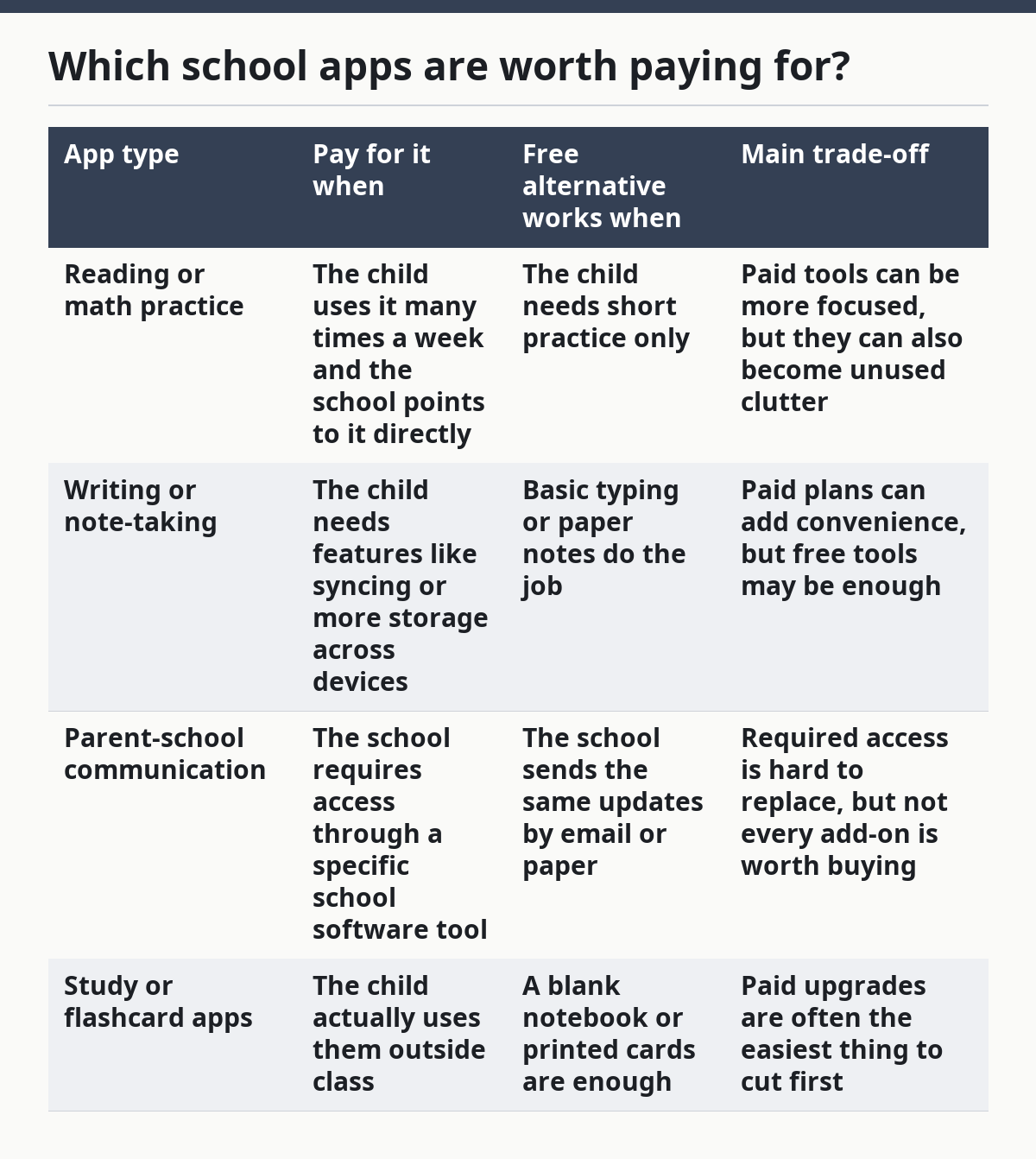
Free alternatives often matter most when the paid app mainly adds polish, not access. If a free version handles the assignment, lets the child submit work, and does not break your routine, the paid plan is usually optional. That is the honest limit many generic guides skip.
The wrong fit is just as important. A subscription is a bad buy when it duplicates a tool the school already provides, when your child uses it once or twice a month, or when it requires too much parent setup after a long day. A good app should save time, not create a second homework job for the adult.
How can family sharing and shared device accounts lower cost?
Family sharing and shared device accounts can lower cost, but they work best only when the app allows them and when you can keep accounts organized. Apple’s Family Sharing setup, for example, is designed for shared access across a family group, while Google Play subscriptions are managed through the account that bought them, so the exact setup depends on the app store and the developer’s rules.
Use family plans when the app explicitly supports them and the people in the house actually need the same service. That can reduce duplicate purchases across two phones or a tablet and a laptop. It is most useful when a parent and child both need access, or when more than one child uses the same learning tool.
Shared device accounts are better for one household tablet than for one child’s personal school profile. They keep the cost lower, but they also raise a few practical problems: login mix-ups, lost progress, and the risk that one child changes settings for another. If a tool stores school work, test prep, or teacher messages, separate profiles are usually safer even if they are less convenient.
The honest trade-off is privacy versus price. Shared access can save money, but it can also blur school data, personal data, and purchase history. If a tool is tied to grades or messages from school, a separate account is often worth the cleaner setup.
How do I stop app subscriptions from renewing unexpectedly?
You stop app subscriptions from renewing unexpectedly by checking the billing source before each renewal date and canceling in the same place where you started the subscription. That usually means the App Store, Google Play, or the app’s own account page.
Open the subscriptions list once a month and look for three things: the renewal date, the billing amount, and whether the app is tied to Apple ID, Google Play, or a school login. The FTC warns that subscription services can keep billing if cancellation steps are unclear, so the safe move is to cancel early and keep the confirmation.
A practical habit is to set two reminders: one 14 days before renewal and another 2 days before. The first gives you time to decide whether the app still earns its place in the budget. The second catches anything you meant to cancel but forgot to finish.
Do not wait until the night before a due date to sort it out. If the app is tied to a school deadline, canceling too late can cause a scramble for homework access. That is one reason monthly billing can be a better fit for families who need flexibility more than they need a slightly lower annual rate.
Where do free alternatives fit?
Free alternatives fit best when the app is useful, but not essential enough to pay for every month. They are the first place to look for reading practice, basic note-taking, flashcards, calendar help, and simple file storage.
Use free options first for 3 kinds of apps: tools the school does not require, tools the child uses only during one unit, and tools that repeat what another app already does. If a free version covers 80% of the need, paying for the rest is often a choice, not a necessity.
The catch is quality and friction. Free apps often include ads, limits, or fewer features, and that can slow a child down right when schoolwork is already stressful. A free tool is worth keeping only if it still fits the homework routine without turning into a fight over logins, pop-ups, or locked features.
This is also the right place to be careful about overlap. A paid reading app and a free reading app that do the same thing is a waste. One good tool is enough. Two similar tools usually mean two bills and the same result.
If a free alternative works, the saved money can move into the same school category for the next renewal cycle. That makes the budget more honest because the total stays visible instead of drifting into everyday spending.
What does a realistic school app budget look like?
A realistic school app budget is one small, specific line with room for renewals, not a vague “tech” bucket that gets raided for everything else. Put it beside your school supplies line, then review it at least once each term or every 3 months.
A workable method is to total the subscriptions you already know about, divide annual costs into a monthly amount in your budget note, and add a little buffer for one unexpected renewal. That buffer is not for buying more apps; it is for the billing date that sneaks up between paychecks.
The biggest mistake is treating school software as a one-time purchase, because school software often renews unless you stop it on purpose. The second mistake is paying for multiple tools that solve the same problem, such as two homework apps with the same job.
This is also where single-parent budgeting discipline pays off. A clear line for school apps helps you protect the rest of the budget from “just this once” charges that repeat for months. The hub for single-parent technology and digital service costs can help you place this category alongside the other digital bills that compete for the same paycheck.
Who this is not for: if a school app is required by the school and has no practical substitute, the question is not whether to budget for it, but how to keep the billing date from colliding with rent, food, or transport. In that case, the work is calendar control, not shopping for the cheapest possible app.
Which school apps are worth paying for?
Paid school apps are worth it when they are used often, required by school, or save enough time to justify the bill. If the app only adds a nicer interface, but the free version still handles the assignment, the paid plan is usually optional. The safest rule is to pay for access or real time savings, not for novelty.
How do I stop app subscriptions from renewing unexpectedly?
The safest way is to cancel inside the same account where the subscription started and to do it before the renewal date. Check the App Store, Google Play, or the app’s own billing page, then save the confirmation. A reminder 7 to 14 days early gives you room to fix mistakes.
Should school software go in a sinking fund?
Yes, school software can go in a sinking fund if the costs return once a year or at the start of each term. A sinking fund works well for annual renewals, device-linked school tools, and app store billing that hits at the same time every year. It keeps the money ready instead of forcing a scramble.
How do I budget for educational subscriptions?
Budget for educational subscriptions by listing every paid app, marking the renewal date, and deciding which ones are required, useful, or optional. Put the total in one monthly line, even if some plans bill yearly, so the cost stays visible. Free alternatives should be your first test before you keep any subscription alive.
Drafted with AI; not yet reviewed by a person.