Last updated: November 20, 2026
Quick Answer: a simple starting budget is $5–$10 a month for cloud storage plus a one-time external drive, with a 10-minute monthly review to keep digital storage and backup costs from drifting. If income changes from paycheck to paycheck, the goal is not “perfect backup.” The goal is a small, repeatable cost that protects family photos, school files, and essential records without becoming an ignored subscription. This guide explains how to budget for digital storage and backup costs as a single parent without overpaying for overlap.
What are you actually paying for?
You are paying for storage space, backup convenience, and the time saved when a phone or laptop fills up. Digital storage and backup services usually break into three buckets: cloud storage, photo backup service, and file backup service.
Cloud storage holds files in an account you can reach from more than one device. Photo backup service focuses on camera rolls and albums. File backup service protects documents, spreadsheets, and folders from a computer or phone. An external drive is different: it is a one-time device you plug in, usually through USB, to keep a local copy.
A single parent budget gets easier when each cost has a job. Photos, school files, and records do not all need the same setup. A camera roll may live in a photo backup service, while tax files and school forms may sit in cloud storage plus an external drive. That split keeps you from paying for a large plan when only one type of file needs frequent access.
The most useful budget question is often not “What is the cheapest plan?” It is “What has to be safe, and what can stay on the device for now?” That question keeps the bill tied to actual family needs instead of vague fear of running out of space.
How do I set a storage budget?

You set a storage budget by giving digital storage a monthly cap and treating backup like a non-negotiable utility, not an impulse buy. If you are unsure what is reasonable, consider the advice from the National Institute of Standards and Technology and the Federal Trade Commission, and consult a qualified financial or IT professional if your setup is complicated. The easiest way is to choose one base amount for cloud storage, one once-a-year amount for an external drive, and a small buffer for upgrades only when the phone or laptop actually fills up.
Start by listing the files that matter most: family photos, schoolwork, medical or identity records, and work documents. Then decide which of those must be available from more than one device. That answer tells you whether cloud storage alone is enough or whether you also need a file backup service or an external drive.
A simple budget rule helps here: keep one recurring subscription and one backup device. That keeps the cost visible. It also avoids paying for two or three separate apps that all do almost the same thing.
Use this order when building the budget:
- Inventory the files on your phone and laptop, then note which ones you would miss most if a device broke.
- Choose one primary tool, such as cloud storage, for the files you need every week.
- Add one external drive for a second copy of the most important files.
- Separate photo backup from general file backup only if your camera roll is large enough to need its own plan.
- Review the plan every 3 months so the bill does not drift upward unnoticed.
The result you want is a small, named expense that you can point to in your budget instead of random charges spread across apps and devices. For a broader budgeting framework, see single-parent budgeting basics and how to lower monthly digital bills.
Which files deserve backup first?
The first files to back up are the ones that would hurt most if they vanished for 1 day. For most single parents, that means school files, family photos, and essential records before random downloads, screenshots, or old app data.
Start with the items that take time to recreate or cannot be recreated at all. School forms, child care paperwork, scanned IDs, tax documents, and photos from a child’s early years belong near the top. A music playlist or old meme folder does not.
This is where phone storage and backup get tangled. A full phone pushes people toward a quick paid upgrade, but many files can be moved out instead. Offloading old videos, duplicate photos, and large downloads can delay a bigger plan by months. That matters when income changes from paycheck to paycheck.
A useful rule is to sort files into three groups:
- Must keep now: records, forms, current school files, recent photos
- Keep if space allows: full photo library, work archives, old scans
- Delete or store elsewhere: duplicates, temporary files, large videos you do not need often
That sorting step often saves more money than choosing the cheapest plan. It also helps you avoid paying for storage you do not actually use.
How does cloud storage compare with an external drive?
Cloud storage is better for easy access, and an external drive is better for keeping a second copy without a monthly fee. A single parent usually needs both ideas, but not always both purchases right away.
Here is the trade-off in plain terms: cloud storage helps when you need files on a phone, laptop, and tablet. An external drive helps when you want a local backup that is not tied to a subscription. Cloud storage costs can repeat every month. An external drive is usually a one-time purchase, but it can be lost, damaged, or left unplugged.
| Option | Best for | Cost pattern | Main drawback |
|---|---|---|---|
| Cloud storage | Photos, shared files, access on multiple devices | Recurring subscription | Monthly bill can grow quietly |
| Photo backup service | Camera roll and albums | Recurring subscription | Can become redundant if cloud storage already covers photos |
| File backup service | Documents and folders from a phone or computer | Recurring subscription | Easy to forget if you do not check it |
| External drive | Local second copy of important files | One-time device cost | No protection if the drive is lost or fails |
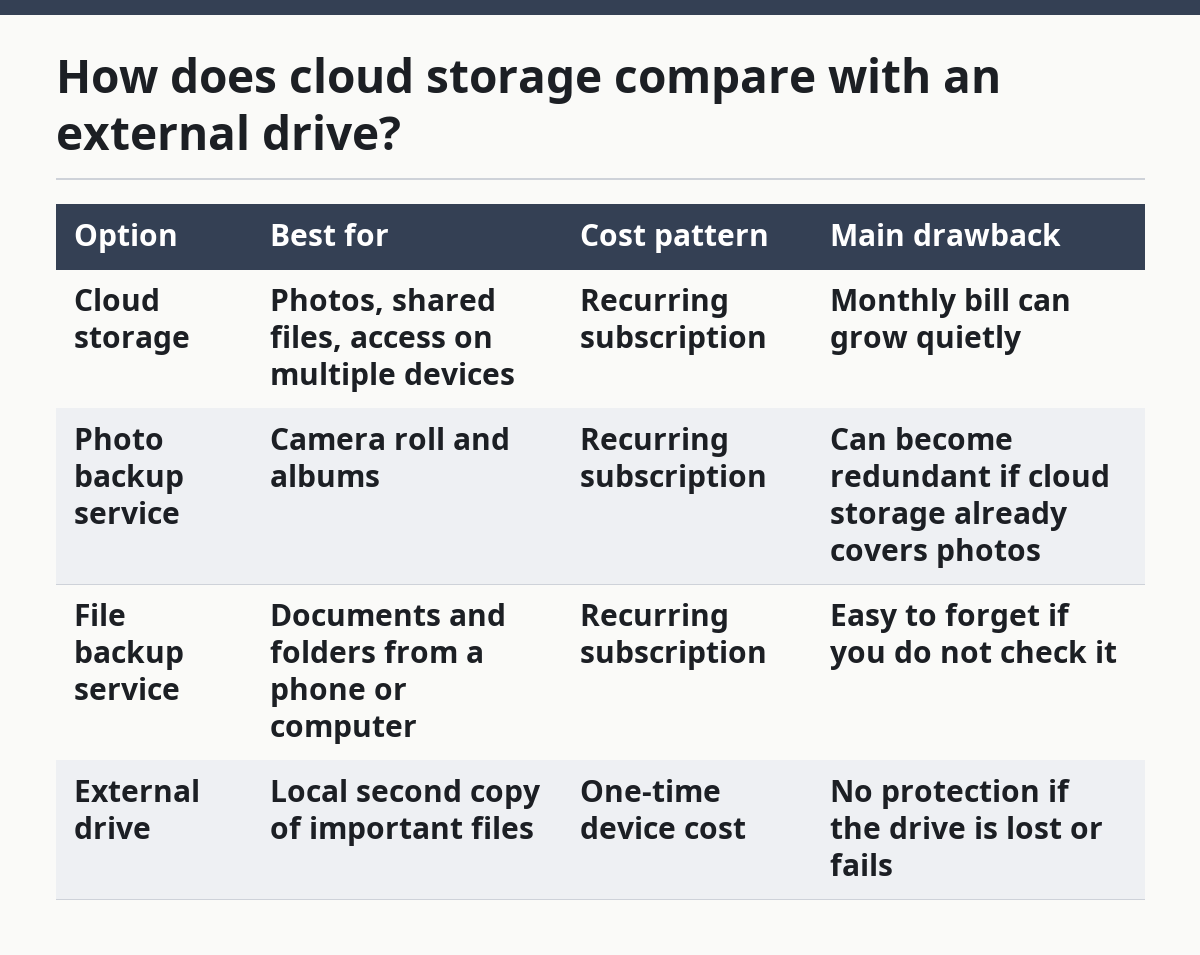
The best choice for many families is a small cloud plan plus one external drive. That pairing covers both access and backup without turning storage into a pile of subscriptions. It is not the best choice for someone who wants every file available everywhere all the time, and it is not ideal if the internet is unreliable where you live. For related comparisons, see cloud storage vs. local backup and external drive basics.
What budget mistakes raise the bill?
The biggest budget mistake is paying for two services that do the same job. That happens when a phone plan, a cloud plan, and a photo app all store the same camera roll. The cost is not just the subscription; it is the hidden waste of paying twice for duplicate files.
Another mistake is buying extra space before cleaning up the account. If a phone is full because of 8,000 screenshots and old videos, a bigger plan may only delay the same problem. A 20-minute cleanup can do more for the budget than a higher tier.
A third mistake is setting up backup and never checking whether it still runs. A service that stopped syncing last month is a silent risk. It still charges you, but it does not protect the files you think it does.
To avoid that, use a simple 3-point check every month:
- Open the storage app and confirm the current usage.
- Delete duplicates, old downloads, and unnecessary videos.
- Confirm that the most important folders still sync.
That monthly check is short, but it keeps the bill honest. It also tells you when a family member’s shared album or school folder is pushing you into a bigger plan.
How can I keep costs low month after month?
You keep costs low by matching the plan to the files, then trimming the files to fit the plan. That means one paid tier, one cleanup routine, and one backup copy you can touch.
For phone storage, turn on automatic upload only for the folders that matter most. If every video clips into the cloud, your plan can fill fast. If only photos and documents sync, the bill stays smaller. This is especially useful when a child’s school app, camera roll, and work email all live on the same phone.
For file backup, use a standard backup structure that does not tempt you to overbuy. The 3-2-1 backup rule is a common standard: keep 3 copies of important data, on 2 different types of storage, with 1 copy stored off the main device. That does not mean you need expensive gear. It means you need a clear backup habit.
The 3-2-1 idea is a good fit for a single parent because it gives a simple target. One copy can live on the phone or laptop, one copy can live in cloud storage or a file backup service, and one copy can live on an external drive. If that sounds like too much, start with two copies and build up from there.
This is also the place to ask whether a paid upgrade is really worth it. For some families, the answer is yes because the time saved is worth more than the monthly cost. For others, especially if the data load is small, the upgrade is just a nicer label on the same storage problem.
For general backup guidance, the National Institute of Standards and Technology has a useful overview of protecting stored data, and the Federal Trade Commission has consumer guidance on backing up files and devices. Those pages are a good check on the basic logic, not a shopping list. See NIST guidance on data protection and FTC backup guidance.
How do I keep this from becoming a forgotten subscription?
You keep it from becoming a forgotten subscription by tying storage to a fixed date and one clear review point. Pick the same day each month, or one day after a regular bill, to check the plan, the used space, and the renewal date.
A 10-minute review is enough. Open the cloud account, look at storage used, and check whether the external drive still has a current copy. If the bill is bigger than planned, the question is not “Can I ignore this for one more month?” The question is “Which files justify this cost?”
That habit matters most when pay is irregular. A plan that feels harmless in a strong month can crowd out other needs in a tight month. The goal is a storage system that bends with your cash flow instead of fighting it.
If you need a broader budgeting framework for uneven income, this topic fits into the larger single-parent technology and digital service costs hub. This page handles the storage piece so the rest of your digital spending does not get buried under one giant bill. See technology costs for single parents and budgeting with irregular income.
Key takeaways
- Pick one main storage job for each tool: cloud access, photo backup, file backup, or local backup on an external drive.
- Protect the files that would hurt most to lose first, not the files that are easiest to save.
- A small paid plan plus one external drive often costs less than several overlapping subscriptions.
- Clean up duplicates and old downloads before you pay for more space.
- Check your storage once a month so the bill stays visible.
What if my budget changes every month?
A changing budget means the plan should be small, simple, and easy to pause. Keep the most important files on the cheapest setup that still protects them, then treat upgrades as temporary rather than permanent.
If one month is tight, reduce the plan before you skip backup entirely. That may mean trimming old photos, moving less-used files to an external drive, or pausing a higher tier until the next strong paycheck. The point is to keep the safety net in place, even if it gets smaller for a while.
How much cloud storage does a single parent need?
A single parent needs enough cloud storage for the files that must stay available across devices, not enough for every file ever made. For many households, that starts with photos, school files, and essential records rather than the full phone library.
The right amount depends on how much media you keep and how often you want shared access. If the plan is filling fast, the problem may be file clutter, not the plan size. A 20-minute cleanup can change the answer before you pay for more space.
Should I pay for photo backup?
You should pay for photo backup only if your camera roll matters enough to deserve its own protected space. That is often true for family photos and videos, especially if your phone is the main camera.
If cloud storage already backs up the camera roll, a separate photo service may be redundant. If the service only repeats what another plan already does, it is a cost without much extra value. The better use of money may be one external drive or a cleaner cloud plan.
Is cloud storage worth budgeting for?
Cloud storage is worth budgeting for when you need files on more than one device or when losing a phone would create a real problem. It is less useful if your files are small, rarely changed, and already backed up on a drive you check regularly.
The value comes from access and recovery, not just space. If the plan helps you replace a lost phone, share school files fast, or keep records safe, it earns its place. If it only stores duplicates, it is a weak use of money.
What files should be backed up first?
Back up the files that are hardest to replace first. For most single parents, that means identity records, school forms, work files, and family photos that cannot be recreated.
After that, move to documents you use less often but still need to keep, such as scans and older records. Large videos, duplicate pictures, and temporary downloads can wait until the important files are safe.
Drafted with AI; not yet reviewed by a person.